Please note that your subscription plan determines the specific set of features available to you, which may result in differences between what you see and the images presented in this article. For further details on the features included in your plan, please contact your OfficeSpace Admin.
Space Types allow you to categorize and track the different types of spaces you have in your workplace. Once created, space types can be assigned to desks and rooms.
Space Types are created and managed using Function, Category, and Space Type. For setup and cleanup steps, see Creating and Managing Space Types Hierarchy.
Creating Space Types
Assigning Space Types to Individual Desks and Rooms
Assigning Space Types to Multiple Desks and Rooms
Creating Space Types
New Space Types can be created under the Space Types tab in Preferences. Space Types can be created individually or in bulk.
Creating Individual Space Types
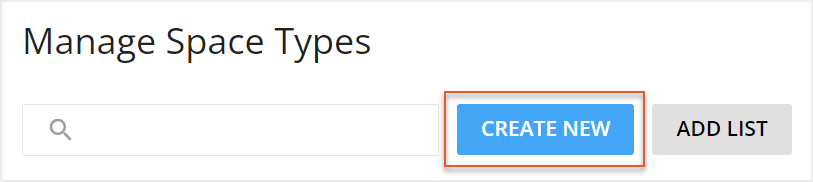
To create an individual Space Type, select Create New.
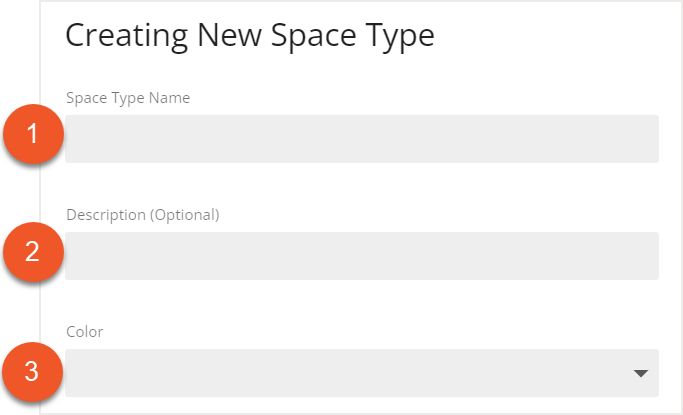
The Creating New Space Type screen then opens. Enter the Space Type Name (1) and add a Description (2), if applicable. Then select the Color (3) field to choose the color of your new Space Type.
Select Create to create your new Space Type.

Creating Multiple Space Types
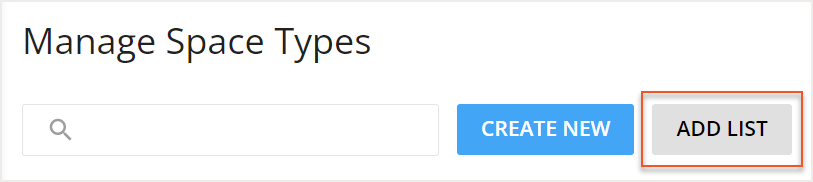
To create multiple Space Types, select Add List.
The Adding List of Space Types screen then opens. You can copy and paste a list of new Space Types from Excel into this screen. Ensure that the columns in your Excel spreadsheet are in the following order: Name, Color (optional), Description (optional).
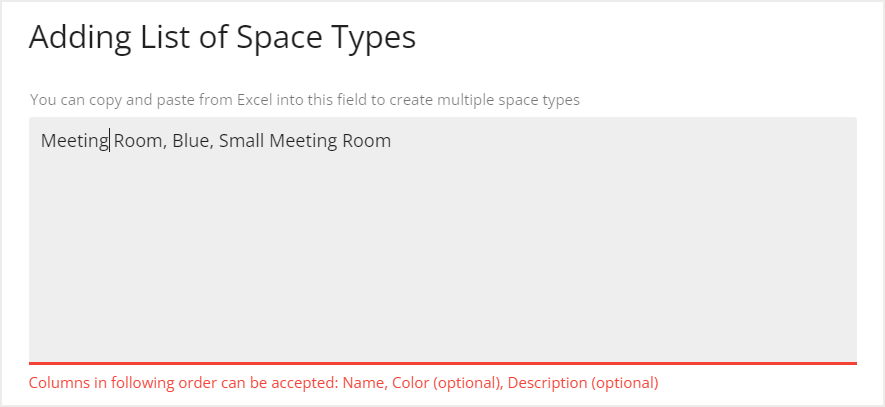
After you have entered your list of Space Types, select Add to create your new Space Types.

Assigning Space Types to Individual Desks and Rooms
After you have created your Space Types, you can assign them to desks and rooms. If a desk is located within a room, it will automatically be assigned the same Space Type as the room. Space Types are assigned in Move Manager.
Select the desired desk or room on the floor plan in Move Manager to open the info card. In the info card, select the Seat tab, then select Edit.
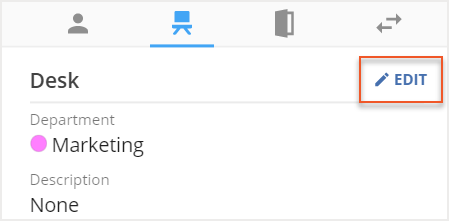
In the Edit Seat or Edit Room screen, select the Space Type field and choose the desired Space Type from the list.
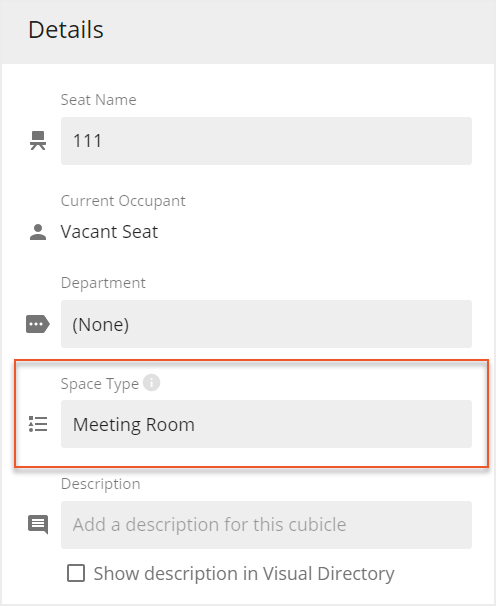
Then select Save to save your changes.

Assigning Space Types to Multiple Desks and Rooms
Space Types can be assigned to multiple desks and rooms using the Multi-Select tool. The Multi-Select tool is located in Move Manager.
Select the Multi-Select tool from the Action Panel in Move Manager.
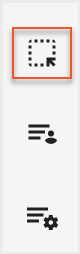
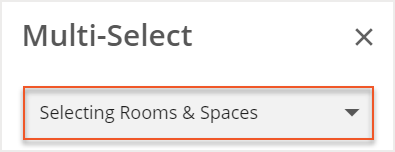
Then use the dropdown menu to choose whether you are Selecting Seats or Selecting Rooms and Spaces.
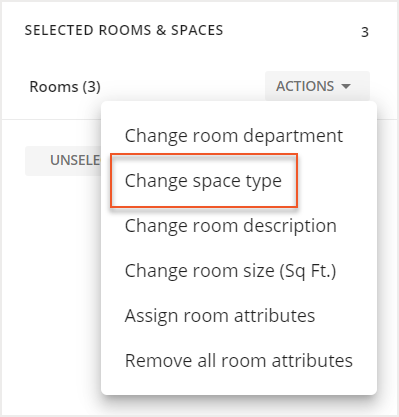
On the floor plan, select the seats or rooms to which you want to assign a Space Type. Then in the Multi-Select tool, expand the Actions dropdown menu and choose Change Space Type from the list.
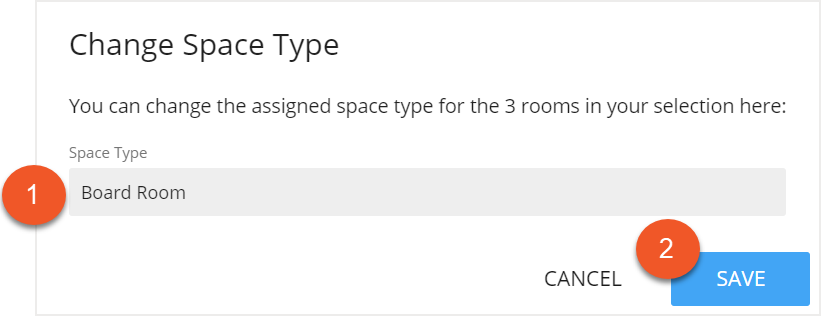
The Change Space Type screen then opens. Select your desired Space Type (1) from the list and then select Save (2).