Please note that your subscription plan determines the specific set of features available to you, which may result in differences between what you see and the images presented in this article. For further details on the features included in your plan, please contact your OfficeSpace Admin.
Using Connectors, you can configure directory synchronization between OfficeSpace and Okta via SCIM.
If you are enabling SCIM provisioning in OfficeSpace for the first time, please contact our Support team at support@officespacesoftware.com to assist you.
Before You Begin
To complete the integration process, you require:
- A valid OfficeSpace license
- Admin-level permissions in OfficeSpace to access the Connectors screen
- A subscription to the Okta Universal Directory and Lifecycle Management (LCM) modules
- Appropriate permissions in Okta
Please note if you have a pre-existing OfficeSpace application that is fully populated, you will need to contact support@officespacesoftware.com, who will prepare your system for this new integration.
Okta/OfficeSpace SCIM integration currently supports the provision of employees based on:
- Creation of Users: New users created in Okta will also be created in OfficeSpace
- Update User Attributes: Updates made to a user’s profile through Okta will be pushed to OfficeSpace
- Deactivate Users: Deactivating a user in Okta will deactivate that user in OfficeSpace
- Reactivate Users: User accounts can be reactivated in Okta and this action will be properly reflected in OfficeSpace
Configuring the Integration in OfficeSpace
Open the Hamburger menu and select Connectors, found under Admin.
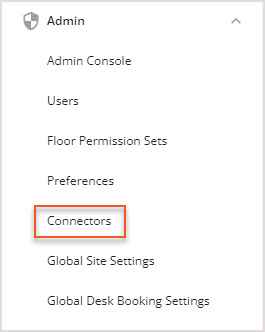
The Connectors screen then opens.
Scroll down to the Directory Synchronization section and select SCIM.
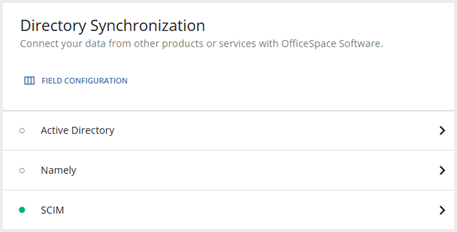
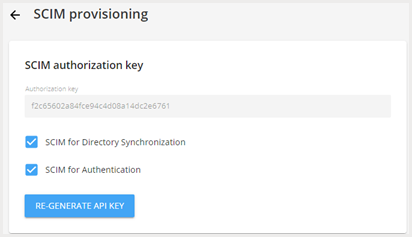
The SCIM provisioning screen then opens.
Select Re-generate API key to create the API key.
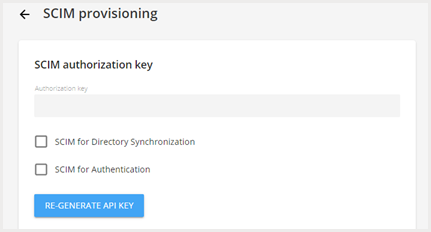
Make a note of the API key, as you will need it later.
You then need to configure your mapping fields. These fields will be automatically populated with our suggested configuration, but you are able to modify this information as required.
Ensure that the SCIM for Directory Synchronization and SCIM for Authentication boxes are checked.
Configuring the Integration in Okta
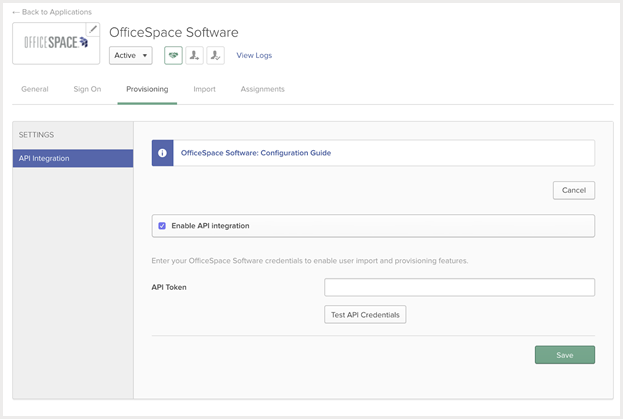
In Okta, enable the API integration by entering the API key generated in OfficeSpace into the API Token field.