Please note that your subscription plan determines the specific set of features available to you, which may result in differences between what you see and the images presented in this article. For further details on the features included in your plan, please contact your OfficeSpace Admin.
With Requests, your management team can quickly and efficiently address the service needs within your offices. When your employees notice possible service opportunities or need your assistance, they can use OfficeSpace to easily submit requests. As a manager, you can use Request Manager to view the details of submitted requests and make decisions on how to respond accordingly.
Accepting Requests
Delegating Requests
Sending Requests to Assets
Merging Requests
Updating Requests
Editing Requests
Closing Requests
Reopening Requests
Working with Requests Linked to Work Orders
Accepting Requests
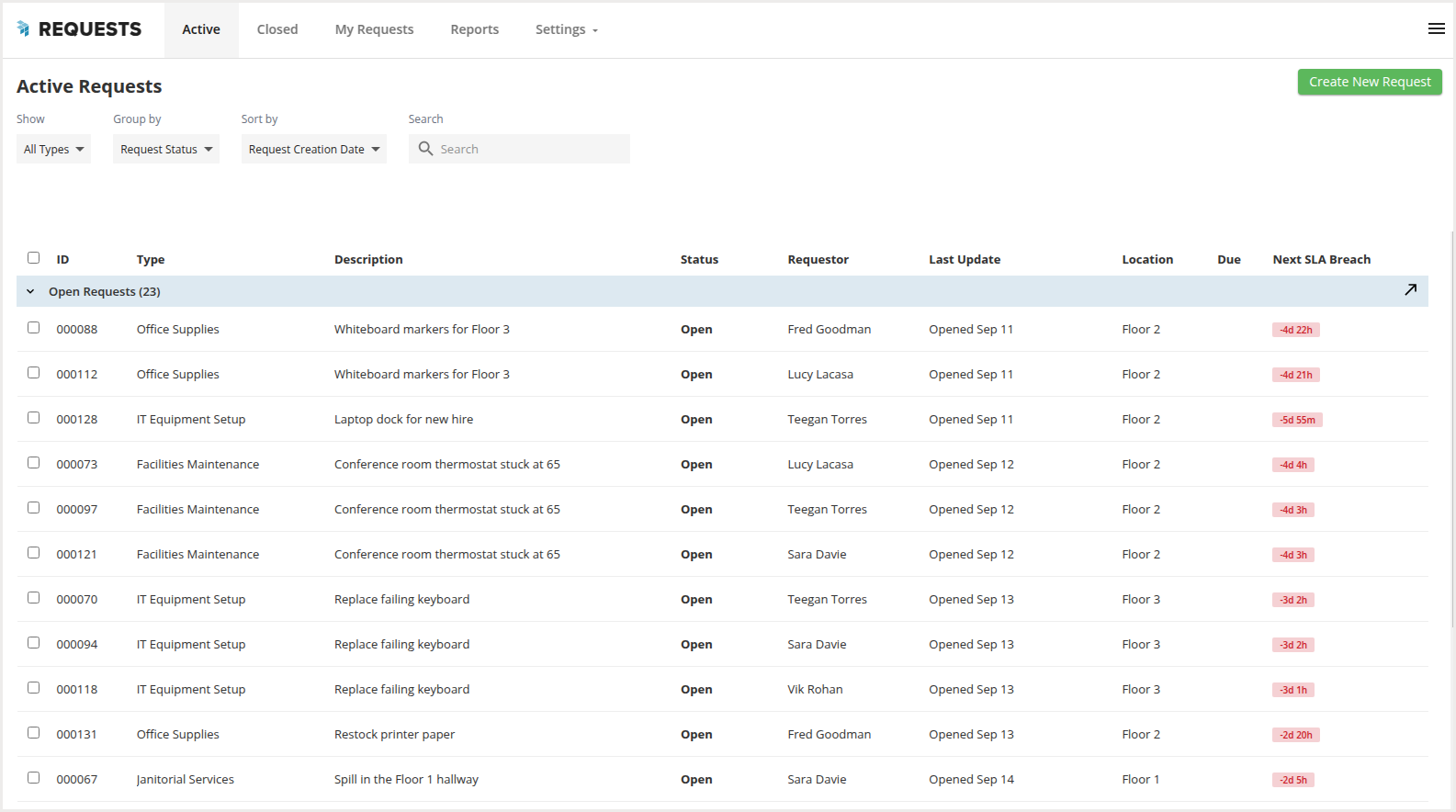
After a request has been submitted, it shows as an Open request under the Active Requests Manager tab. Request Managers can then choose to accept the request to indicate that they are responsible for the request and working on resolving it.
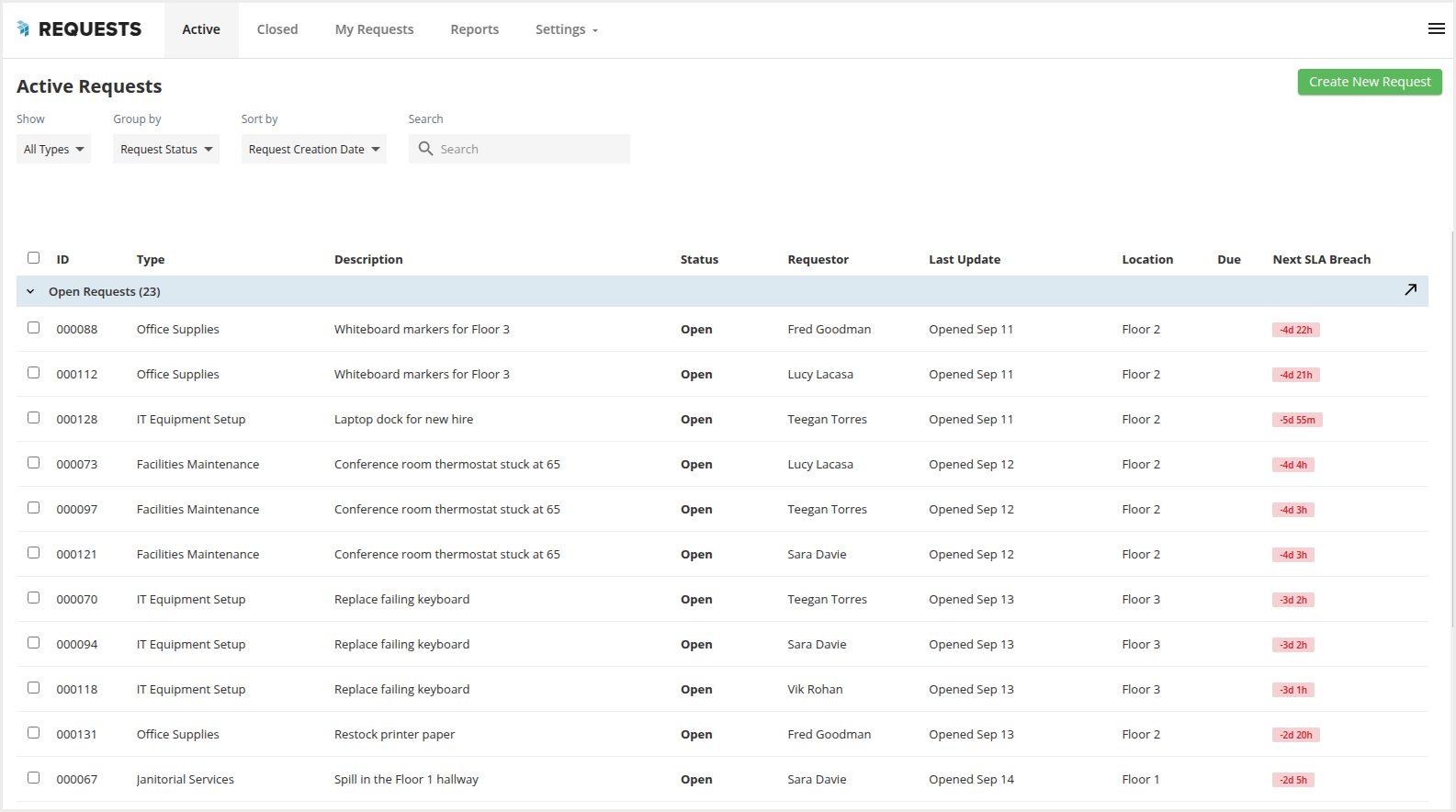
To accept a request, locate it from the list and select it.
Then, select Accept.
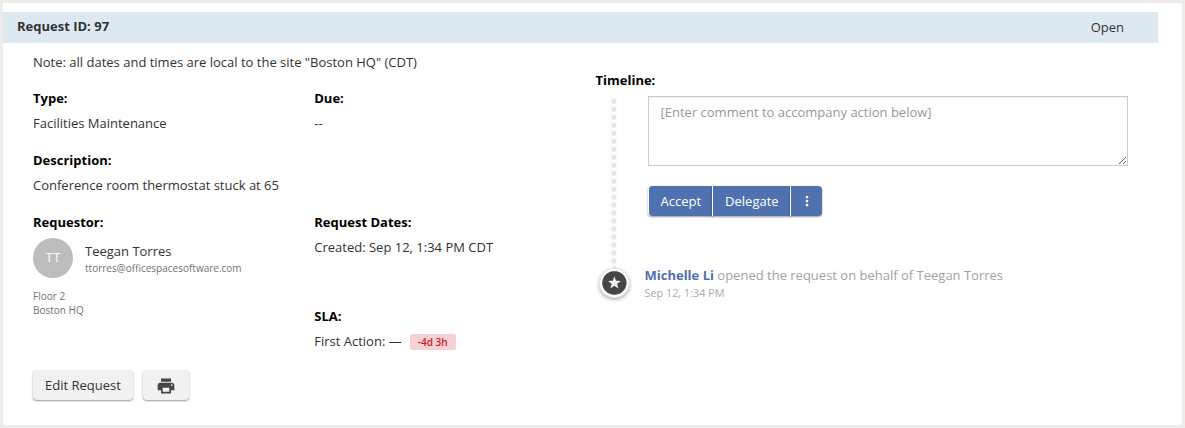
After you accept the request, its status changes to In Progress.
Delegating Requests
Open requests can be delegated to other members of your management team. Requests can be assigned to other Request Managers, who then become responsible to resolve the issues.
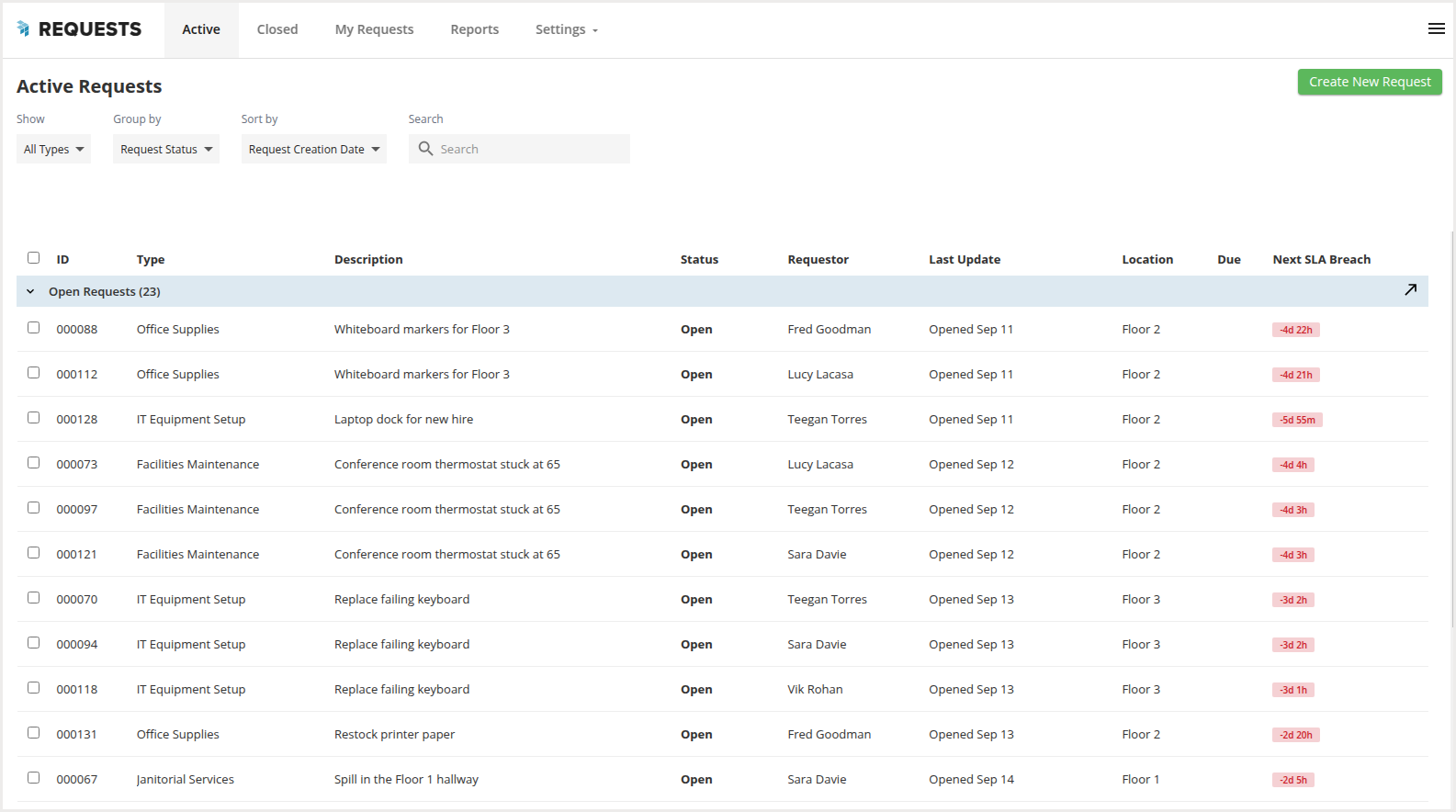
To delegate a request, locate it from the list and select it.
Then, select Delegate and enter the email of the manager you are delegating the request to.
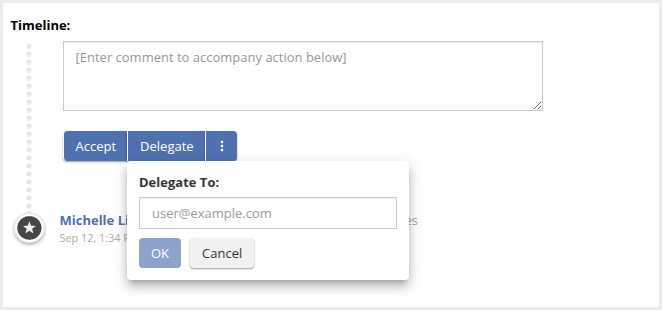
After you delegate the request, its status changes to In Progress.
Sending Requests to Assets
If your organization has integrated Assets with Request Manager, you can send a request to Assets as a work order. This applies to request types set to the Manual routing mode. Requests of a request type set to Automatic become work orders as soon as they're submitted.
To send a request to Assets, locate it from the list and select it.
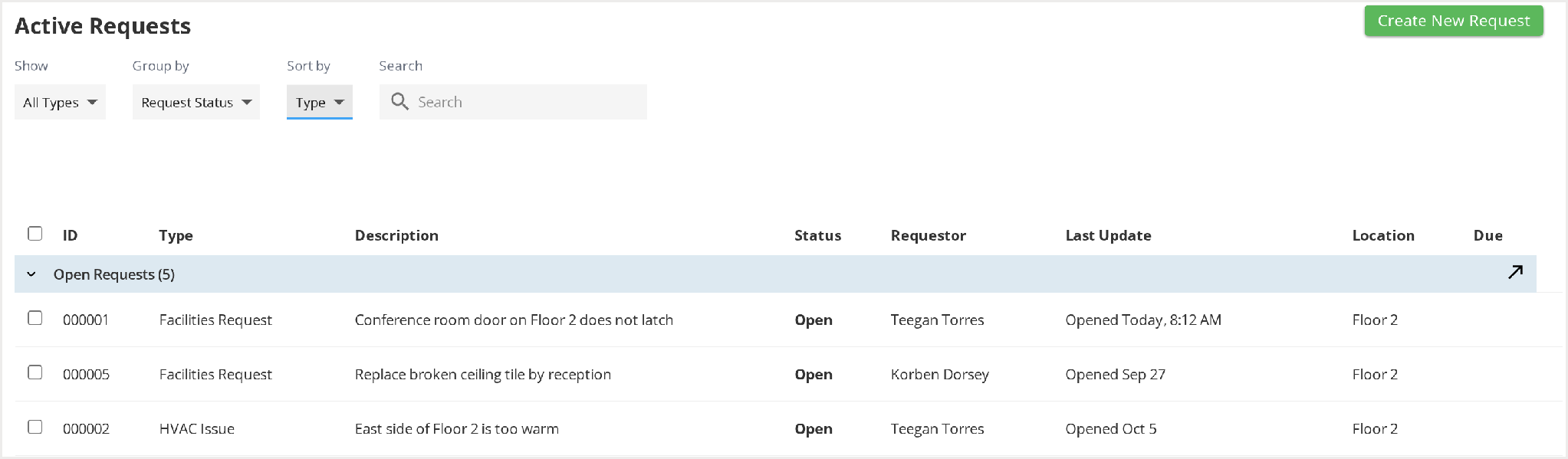
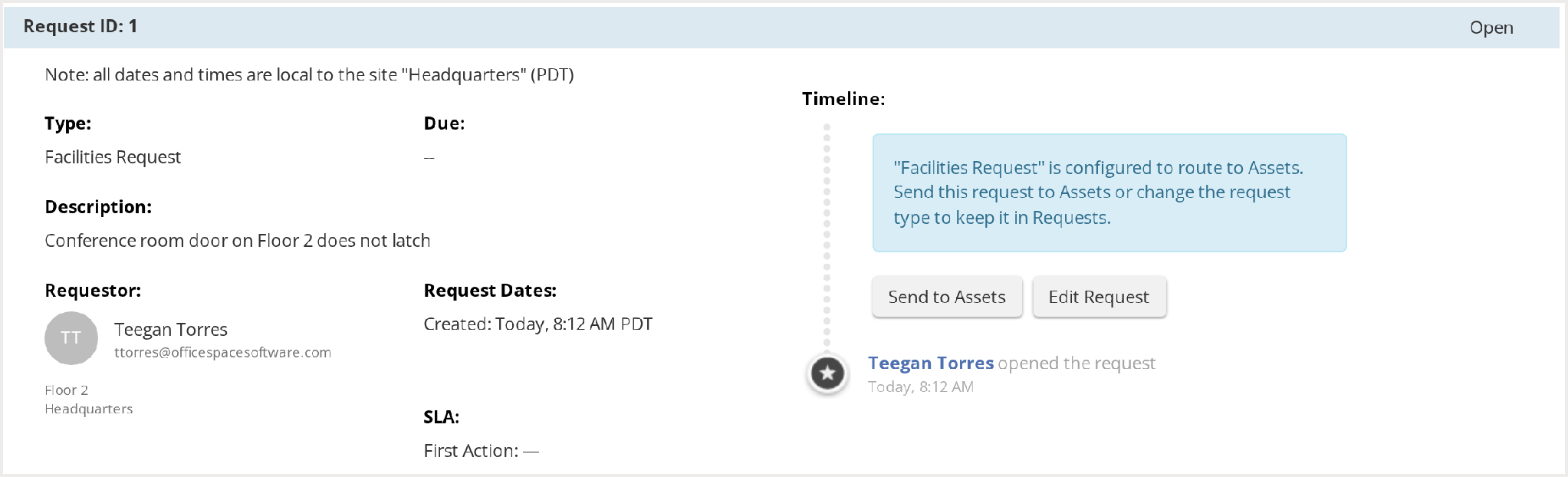
The request details show a note that the request type is configured to route to Assets.
Select Send to Assets.
The request is sent right away, and a notification confirms "This request has been sent to Assets." The work order is created in Assets, and the request becomes read-only in Request Manager.
Note: Send to Assets becomes available once the request has a request type, a requestor, and any required asset, and the request type's Work Order Type is still active in Assets. If the button is unavailable, hover over it to see why.
Merging Requests
If you notice that multiple requests have been submitted for a similar issue or that a new request is similar to a previously-resolved request, you can choose to merge the requests. Merging allows you to remove duplicate requests and makes it easier to respond to issues.
Note: Requests linked to a work order in Assets can't be merged.
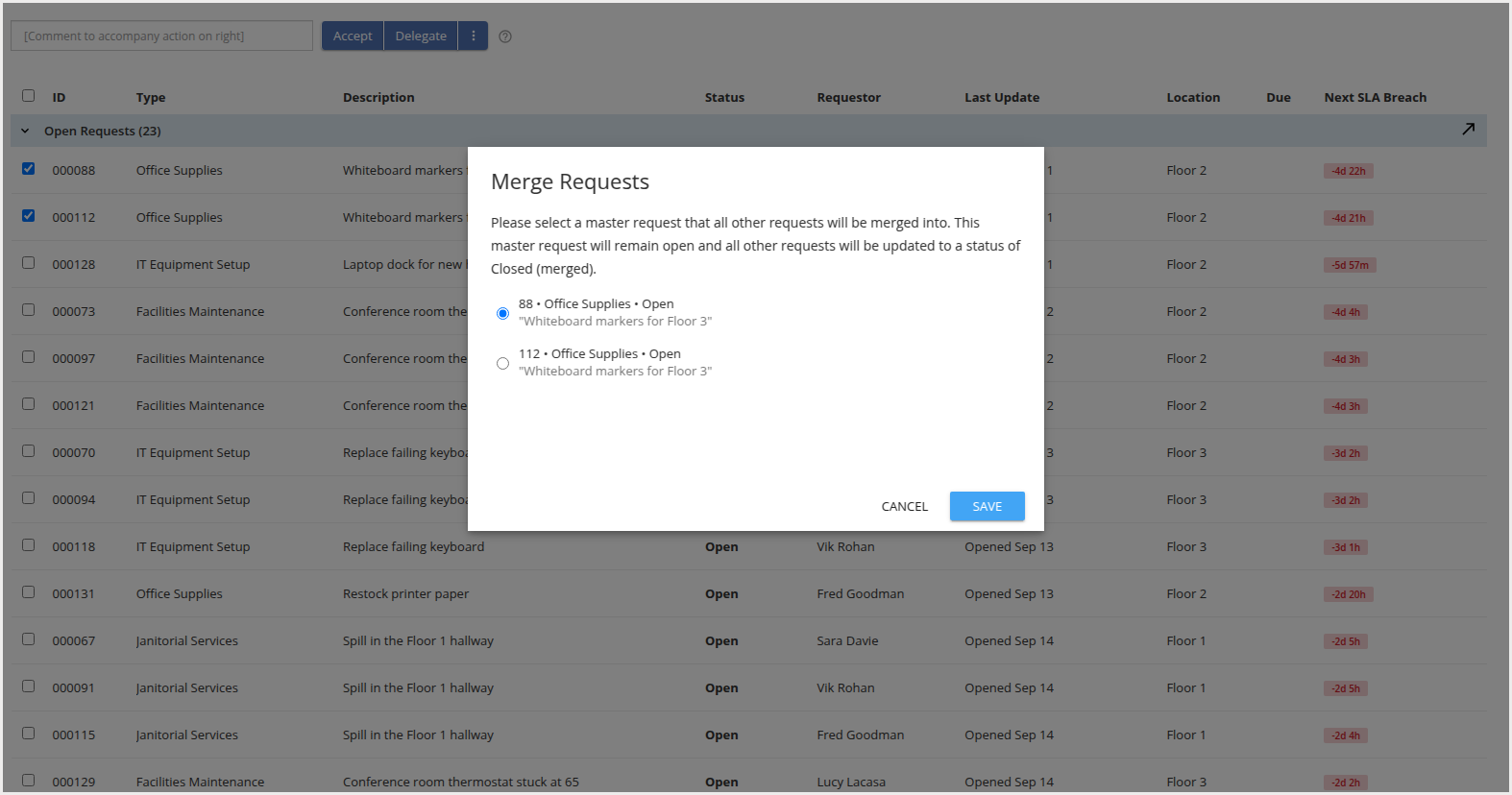
To merge requests, locate the requests under the Active Requests tab and select their respective checkboxes.
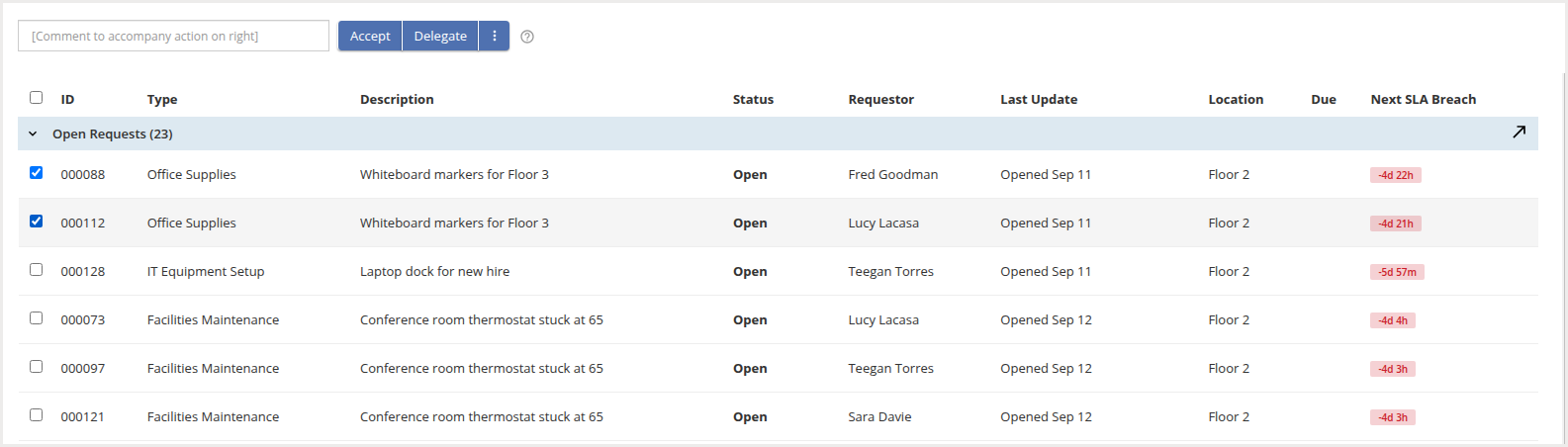
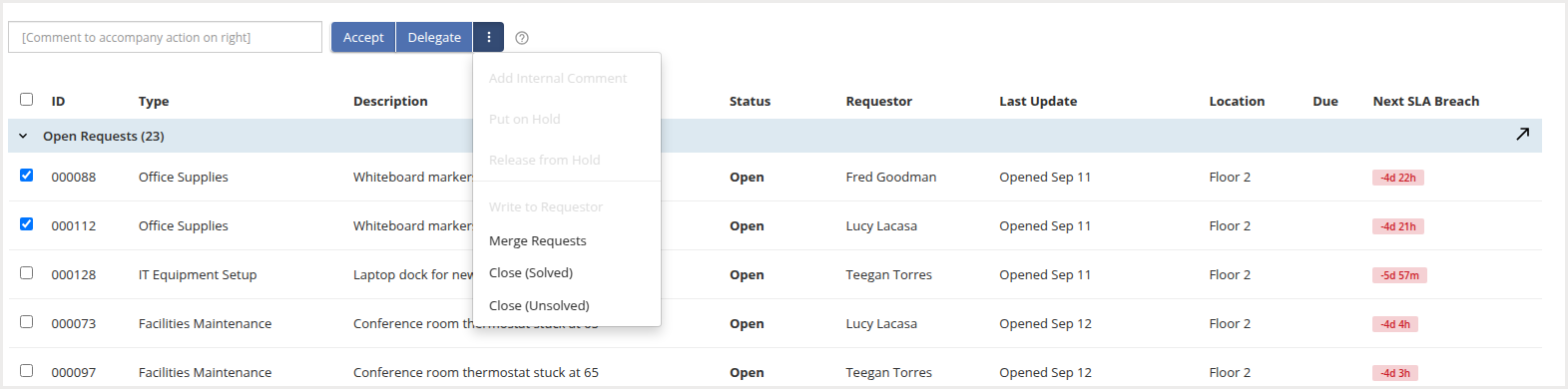
Then, select the three dots at the top. A list of actions is displayed. Select Merge Requests.
The Merge Requests screen opens. Select the request that you would like to be the “master” request. All other selected requests will be merged into this master request. The master request remains open and the other requests are updated to Closed (merged) status. Save stays disabled until a master request has been chosen. Then select Save.
Updating Requests
As you work towards a resolution, there are a variety of actions you can take to keep the request and the requestor up-to-date. When viewing the request details, the Timeline will serve as a full history of your progress, but also serves as a tool to communicate with the requestor and leave internal notes.
Messaging the Requestor
Adding Internal Notes
Messaging the Requestor
When working on a request, you may need to message the requestor to keep them updated or ask questions. To send a message, type your message in the comment box.
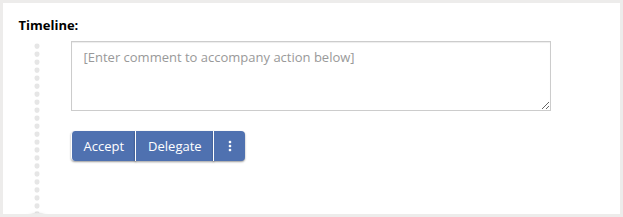
Then select the three dots and choose Write to Requestor from the options.
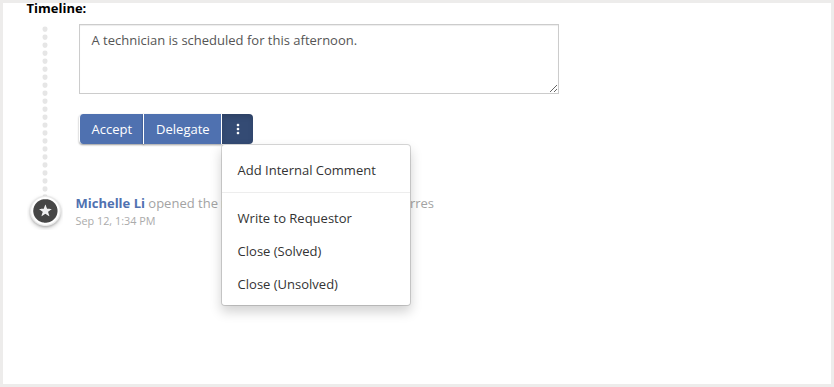
The requestor will receive an email and a notification in Visual DirectoryⓇ. If the requestor responds to your message, you will be able to view it in the request timeline.
Adding Internal Notes
If you want to add notes or information to a request without sharing it with the requestor, you can use an internal note. To add an internal note, type your note in the comment box.
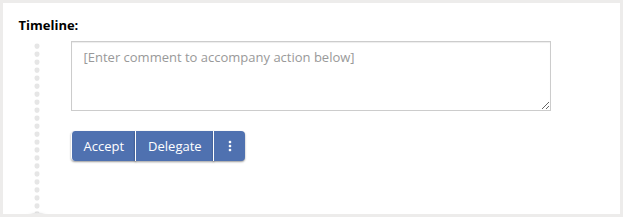
Then select the three dots and choose Add Internal Comment from the options.
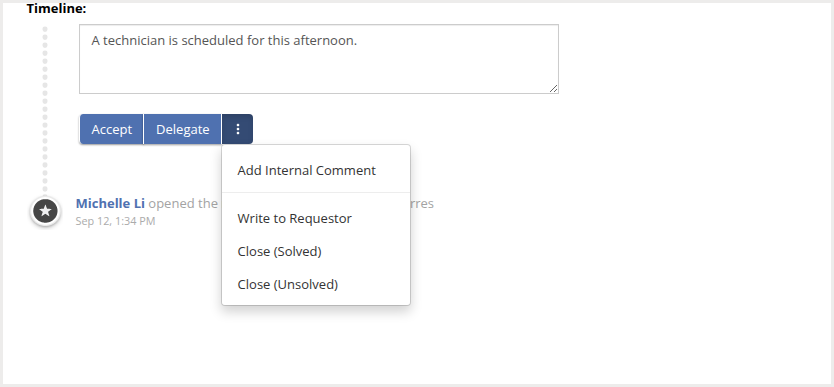
You can view all your internal notes in the request timeline.
Editing Requests
To edit a request, locate it from the list and select it.
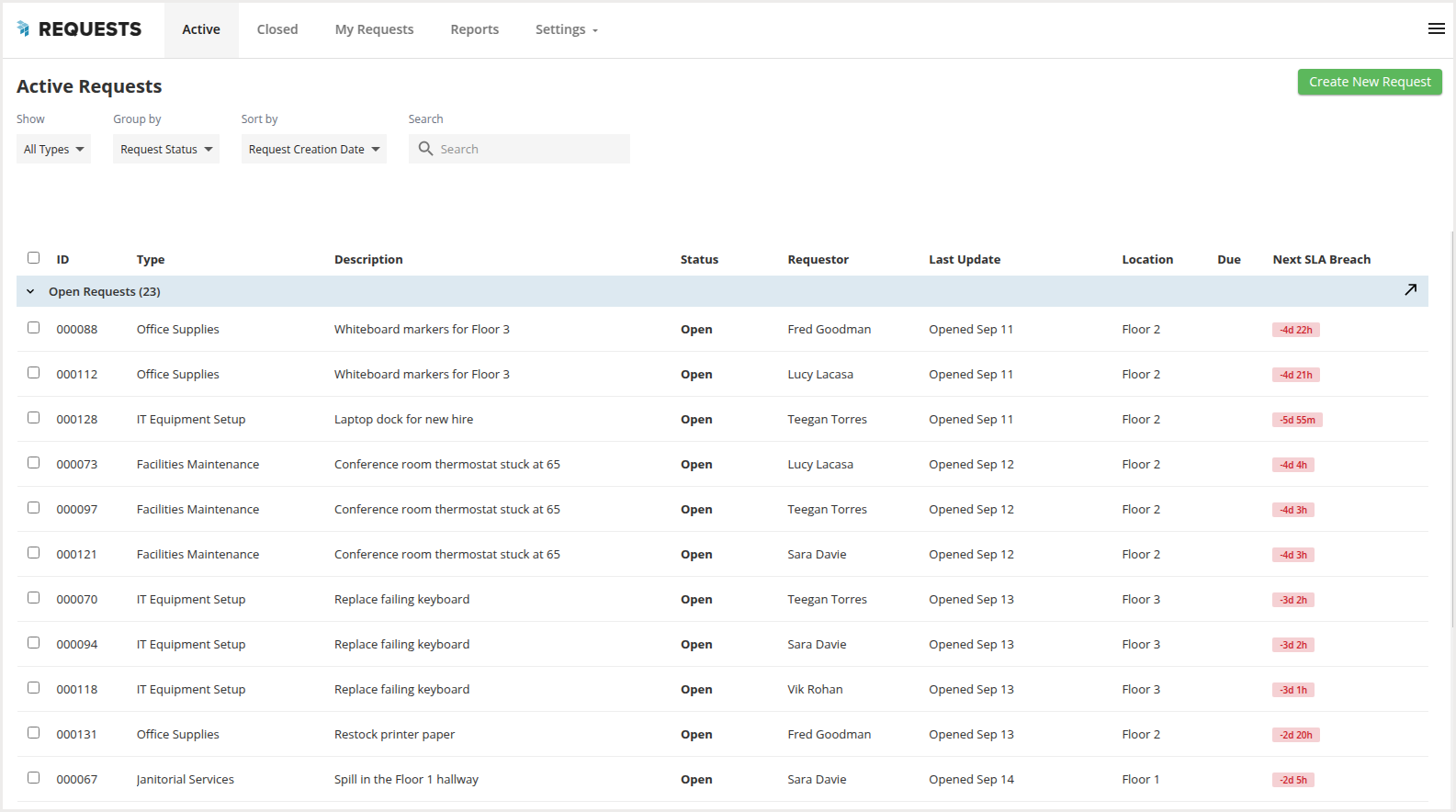
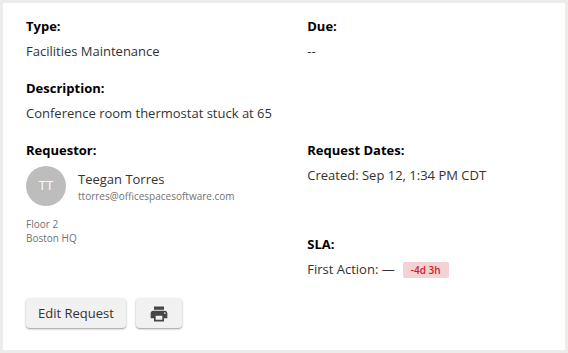
Then select Edit Request.
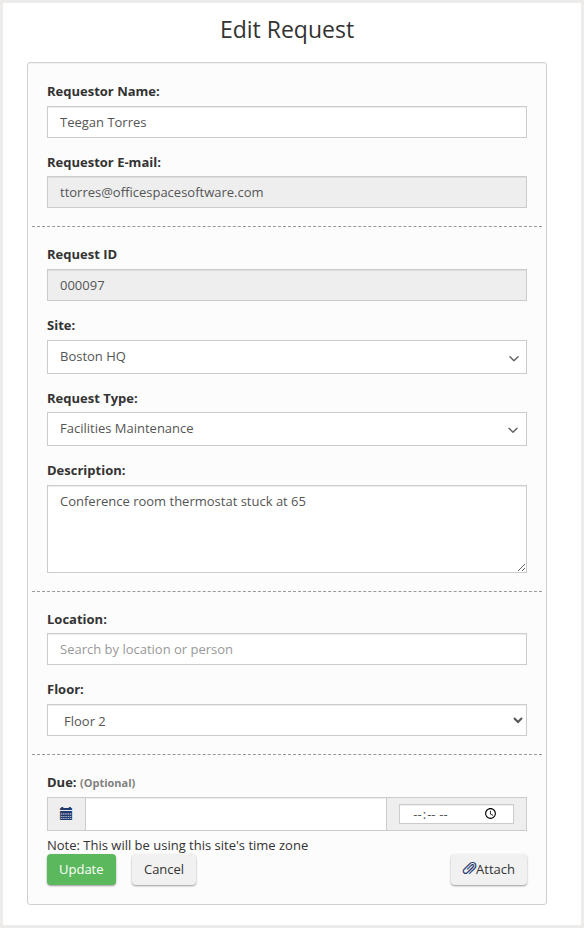
The Edit request screen will open. Here, you can make changes to various details, such as the request type, the description, the location, or any attachments. Then select Update.
You may want some request types to be available for specific locations only. Learn how to manage or add site specific request types in Managing Request Types.
Note: If the request is linked to a work order in Assets, make changes on the work order instead. The request updates automatically.
Closing Requests
When you are ready to close a request, locate it from the list and select it.
Then select the three dots and choose one of the two close options to close the request.
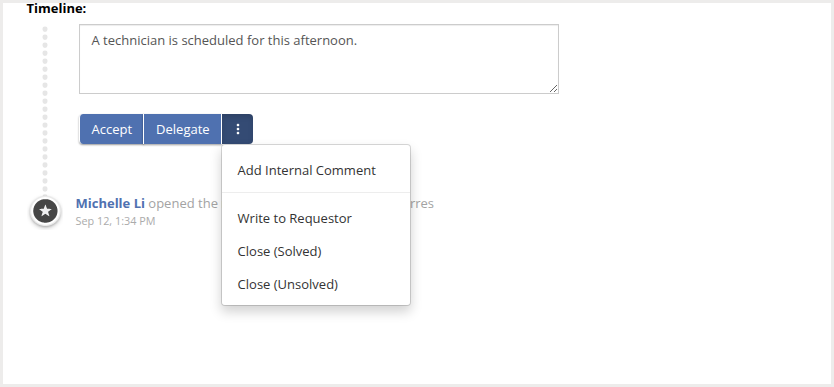
Close (Solved) is used when you have resolved the request successfully. Close (Unsolved) is used when you are unable to resolve the request, but no further action is required or possible.
If the request is linked to a work order in Assets, closing it also cancels the work order.
Reopening Requests
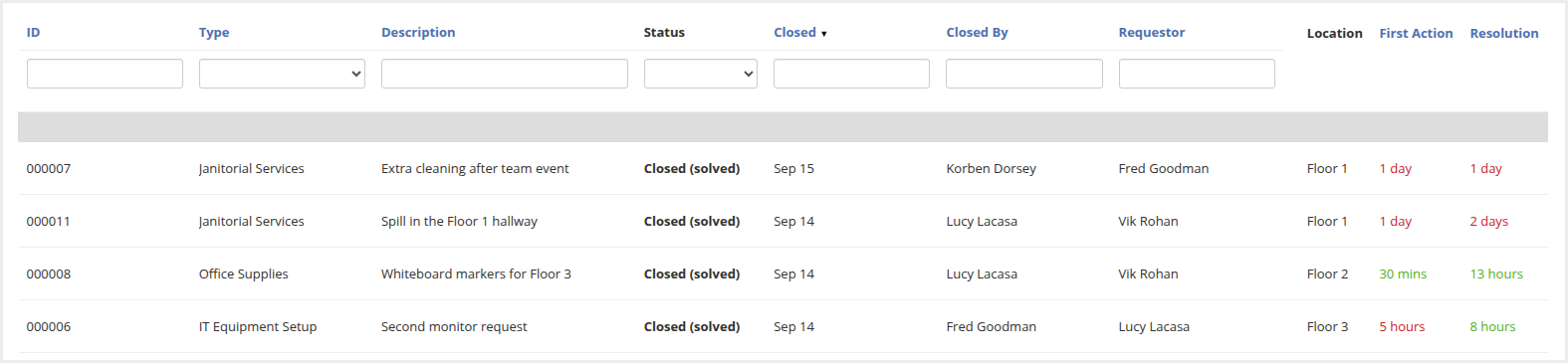
If you need to take further action on a request, you can choose to reopen the request. Requests can be reopened from the Closed Request tab.
To reopen a request, locate it from the list and select it.
Then select Reopen.
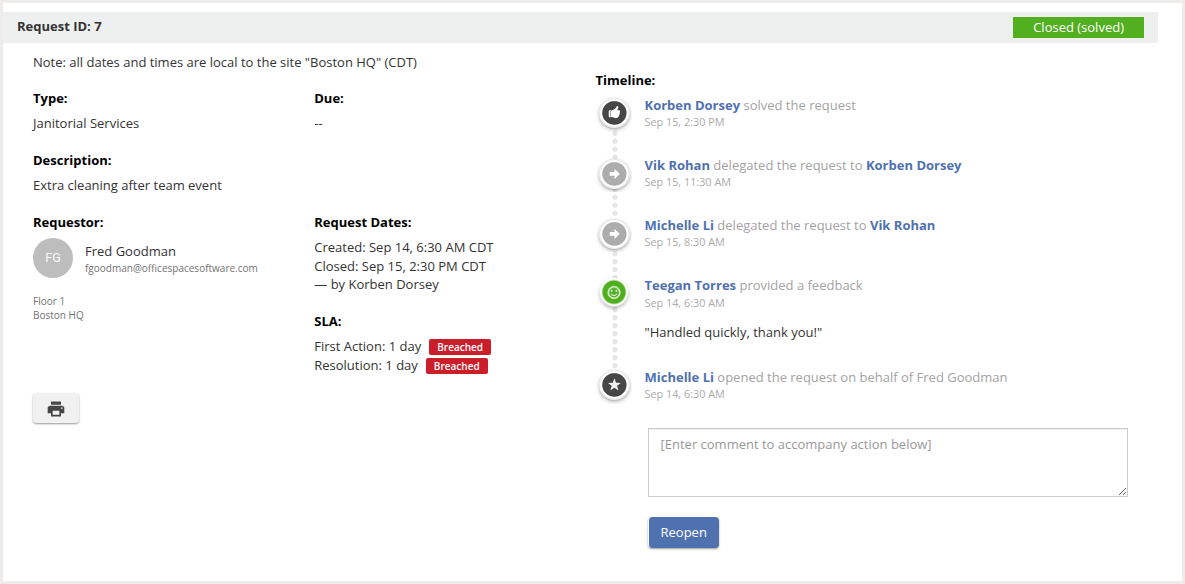
The request is reopened and now shows under the Active Requests tab.
If the request was linked to a work order in Assets, reopening it also reopens the same work order.
Working with Requests Linked to Work Orders
If your organization has integrated Assets with Request Manager, a request that has become a work order shows the banner This request is now managed in Assets. The request is read-only in Request Manager. Track its progress in the request timeline, and make any changes on the work order in Assets.

Select View in Assets in the banner to open the work order.

Note: To open the work order, you need access to Assets as well as Request Manager. If you don't have access, contact your OfficeSpace Admin.
You can still add or remove attachments on a linked request.
The request updates automatically as the work order changes:
- When the work order is marked Done, the request is marked Closed (solved).
- When the work order is cancelled, the request is closed.
- When the work order is moved back to In Progress or To Do, a solved or closed request is reopened.
- Changes to the work order's due date, description, and assignee show up on the request.
Learn more in Integrating Request Manager with Assets.