Please note that your subscription plan determines the specific set of features available to you, which may result in differences between what you see and the images presented in this article. For further details on the features included in your plan, please contact your OfficeSpace Admin.
Request Manager is a useful tool in tracking all submitted requests throughout your company. Quickly and efficiently take action on your employees’ requests, easily view what is pending and what you have accomplished, and help to ensure that you are managing your employees’ experience within your workspaces. Using the request reporting, you can also find valuable information on service trends and how responsive your management team is to submitted requests. To learn more about using requests and request management, check out the Introduction to Requests article.
You must be a Request Manager, System Admin, Facility Admin, or Facility Manager to access Request Manager.
To navigate to Request Manager, select the Hamburger menu. Then select Request Manager.
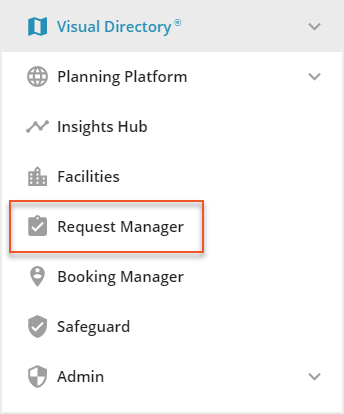
The Active Requests Screen then opens.

There are four tabs within Request Manager:
Active Requests
Closed Requests
My Requests
Reports
Active Requests
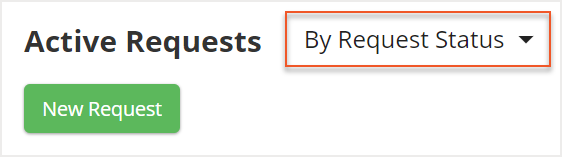
Under the Active tab, you can view a full list of your active requests. A Request Manager can use this tab to not only view their own requests, but also to view all open requests including requests that are assigned to other Request Managers and any requests that are on hold. You can change your view using the dropdown menu at the top to see the active tab By Request Status or By Request Manager.
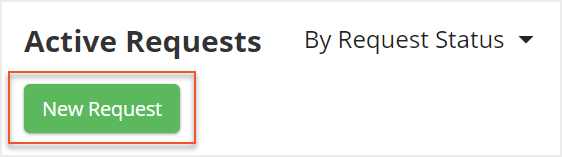
Your employees are able to create their requests from the Home menu in Visual DirectoryⓇ. As a Request Manager, you also have the ability to submit your own requests in Request Manager using the New Request button.
You can use the search bar (1) or the filtering tool (2) to help you locate specific active requests.

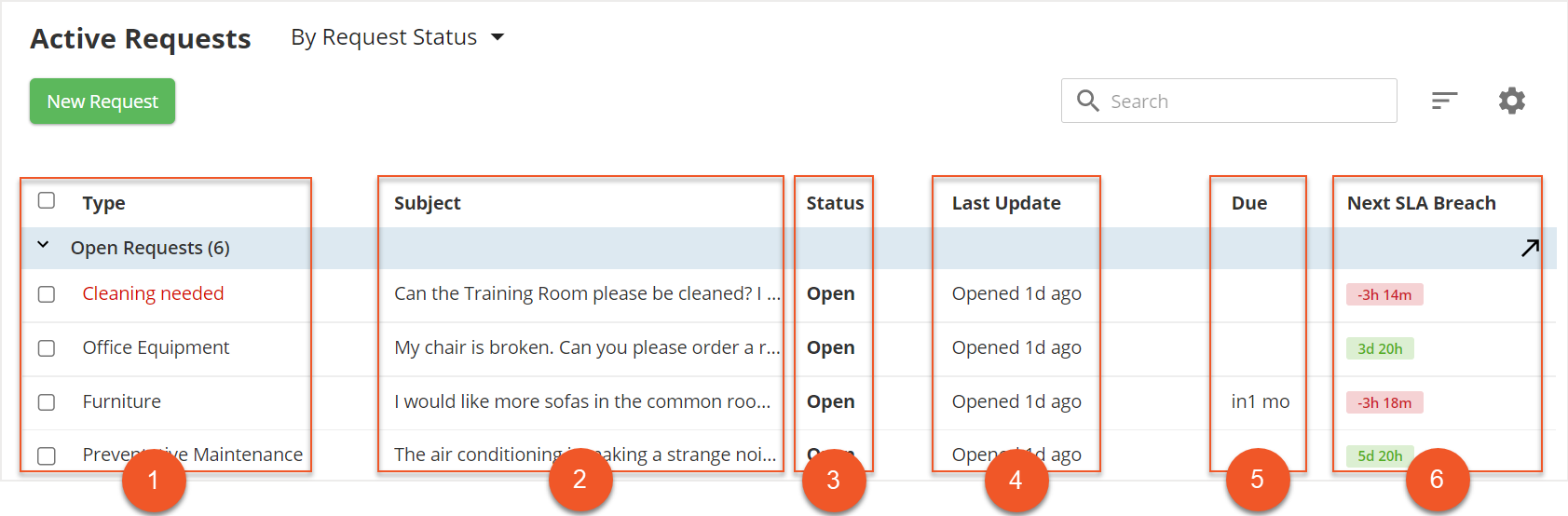
The list of active requests displays a variety of information about each request. Here, you can find columns that show the type of request (1), the subject (2), the status (3), the last update (4), the due date (5), and the next SLA breach (5).
There are three different statuses for active requests. They are:
- Open: Request has been submitted, but has not yet been assigned to a Request Manager
- In Progress: Request has been assigned to a Request Manager
- On Hold: Request that has been put on hold by a Request Manager
Using the settings icon, you can manage a variety of settings for Requests. Here, you can set the available request types, manage the emails that are generated for requests, and manage your request subscriptions.

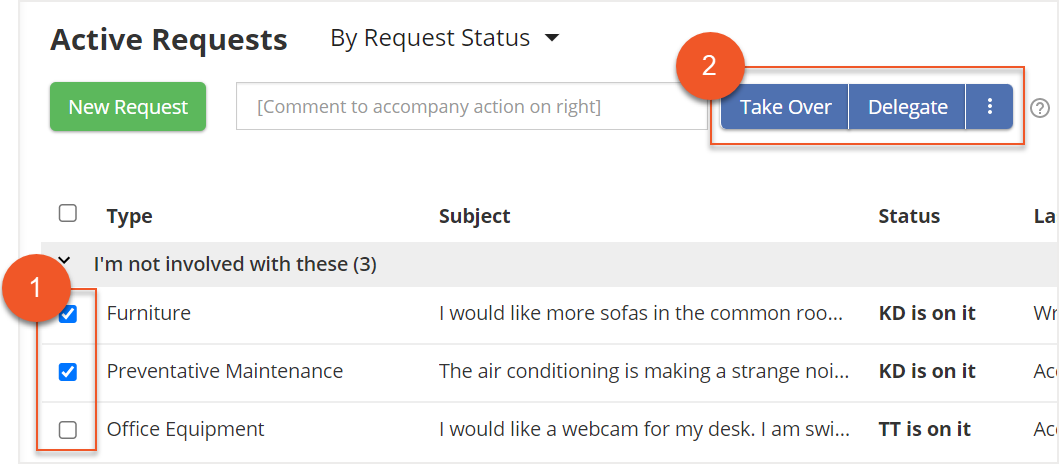
To manage your requests, you can select them from the list to open their full details and take actions. If you want to take the same action on multiple requests, you can do so under the Active tab. Select the checkbox (1) next to your desired requests and a variety of actions (2) will show at the top of the list. The available actions will depend on the status of the requests selected.
To learn more about managing your active requests, check out the Managing Requests article.
Closed Requests
Under the Closed tab, you can view a full list of closed requests. The closed requests that you see depend on your subscribed request types.
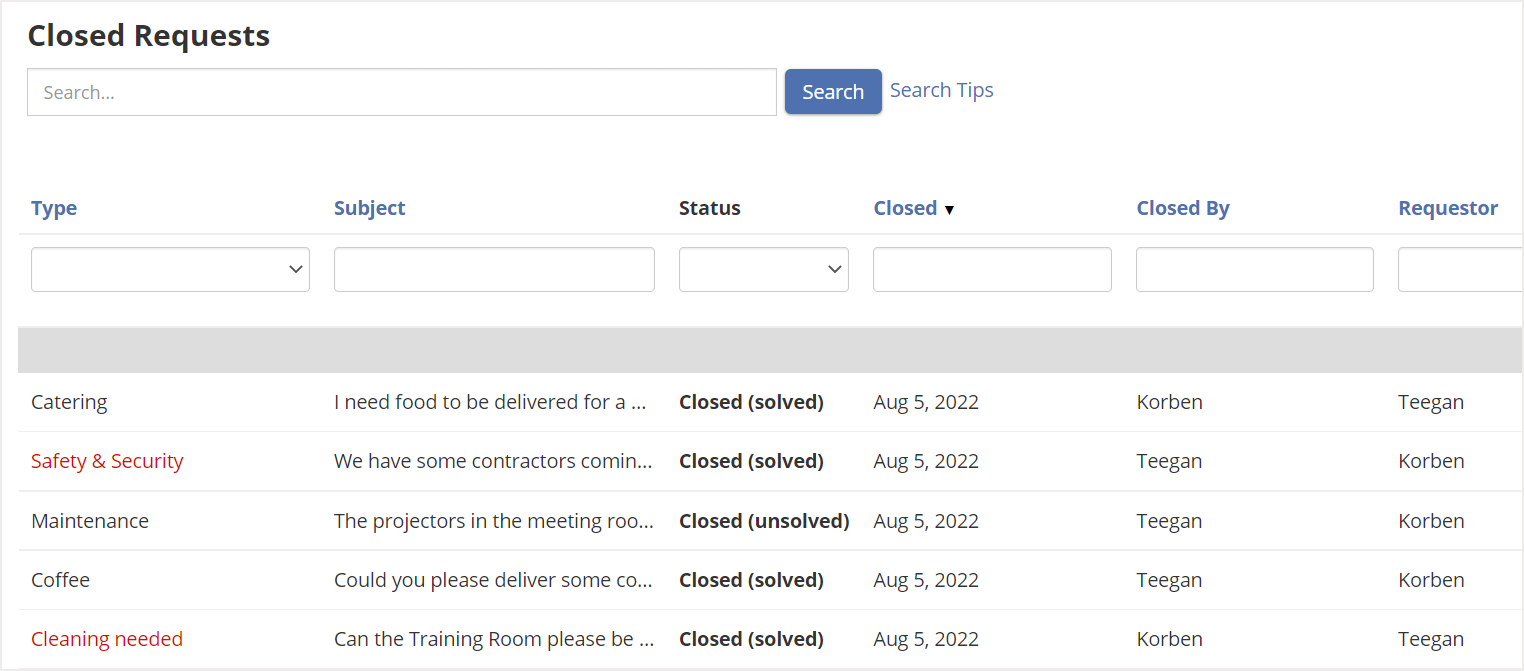
Using the search bar (1) at the top, you can search for specific requests or for requests that meet certain criteria. The Search Tips (2) provide some search prompts that can be used to find the requests you are looking for.

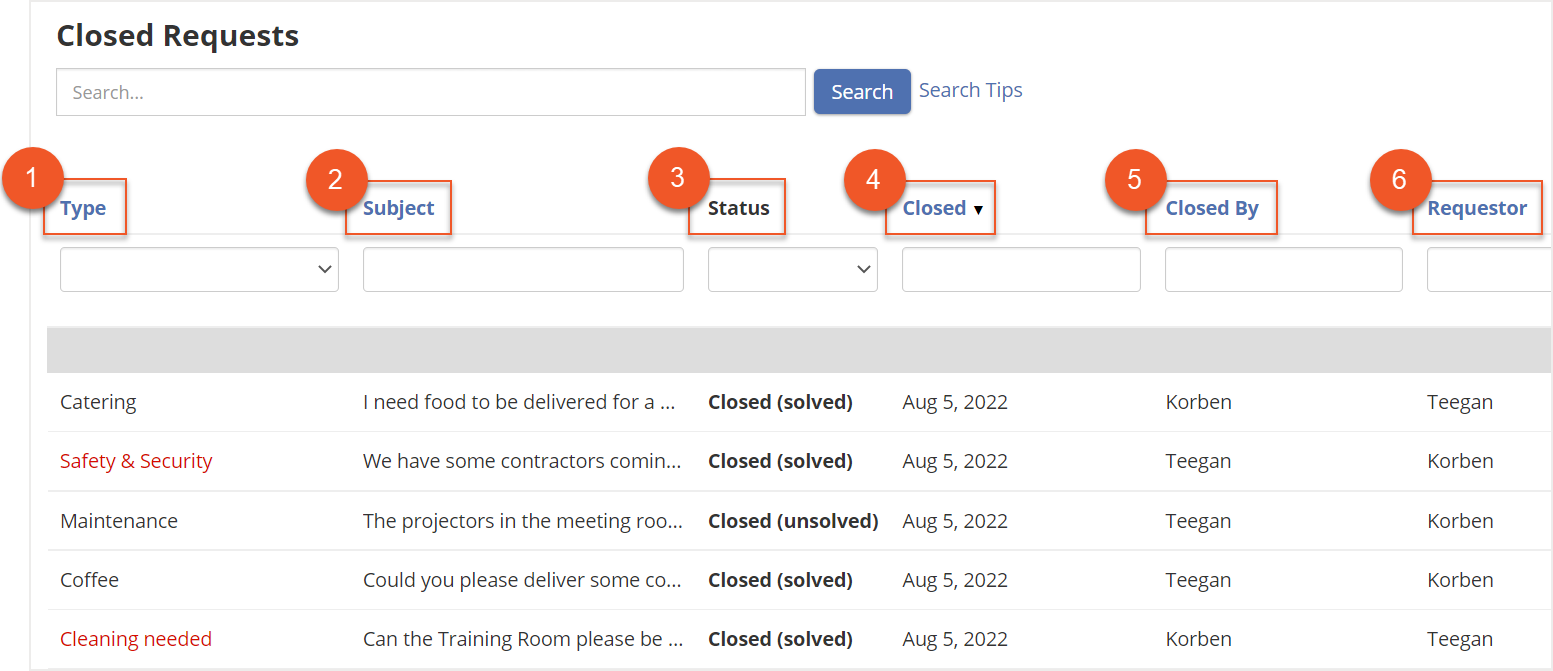
The list of closed requests displays a variety of information about each request. Here, you can find columns that show the type of request (1), the subject (2), the status (3), when the request was closed (4), who the request was closed by (5), and the requestor (5).
There are three different statuses for closed requests. They are:
- Closed (solved): Request solved by the Request Manager
- Closed (unsolved): Request closed without resolution by the Request Manager or the requestor
- Merged: Request merged with another request
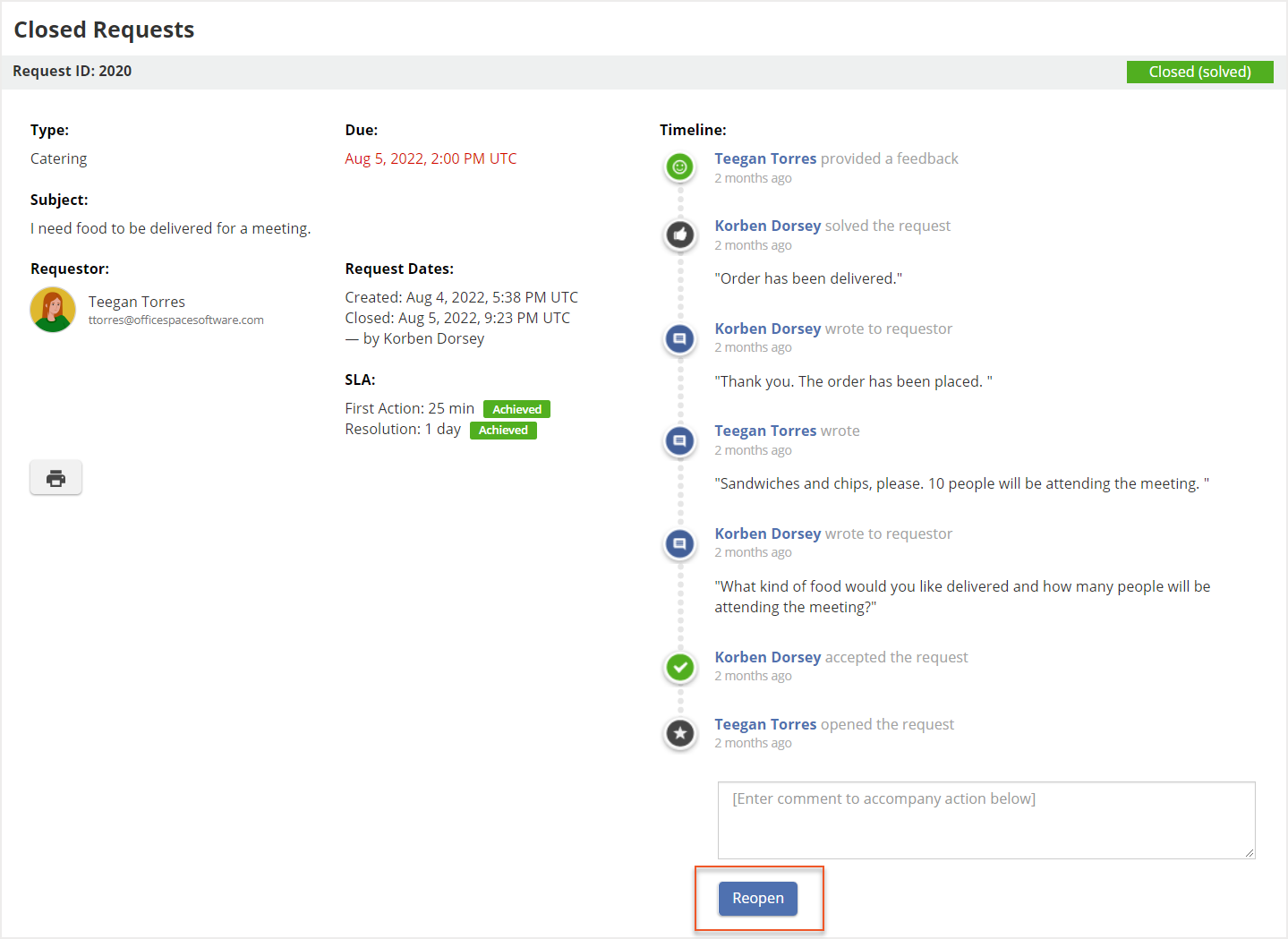
To view the details of a closed request, you can select it from the list. Here, you will also find the option to reopen a request should you feel that it requires further action.
My Requests
The My Requests tab shows you a list of all the requests that you have submitted. You can use this tab to keep track of the progress of your requests. If you have delegated your own request to yourself, you can also use this tab to take action on your own requests. To view the details of a request, select it from the list.
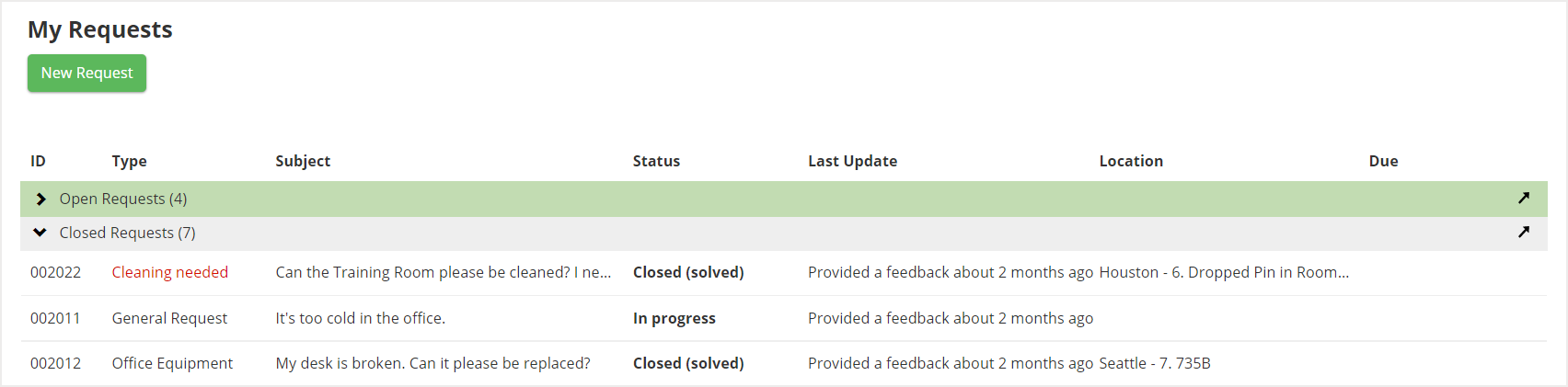
The list of your requests displays a variety of information about your requests. Here, you can find columns that show the type of request (1), the subject (2), the status (3), the last update (4), the location (5) and the due date (6).
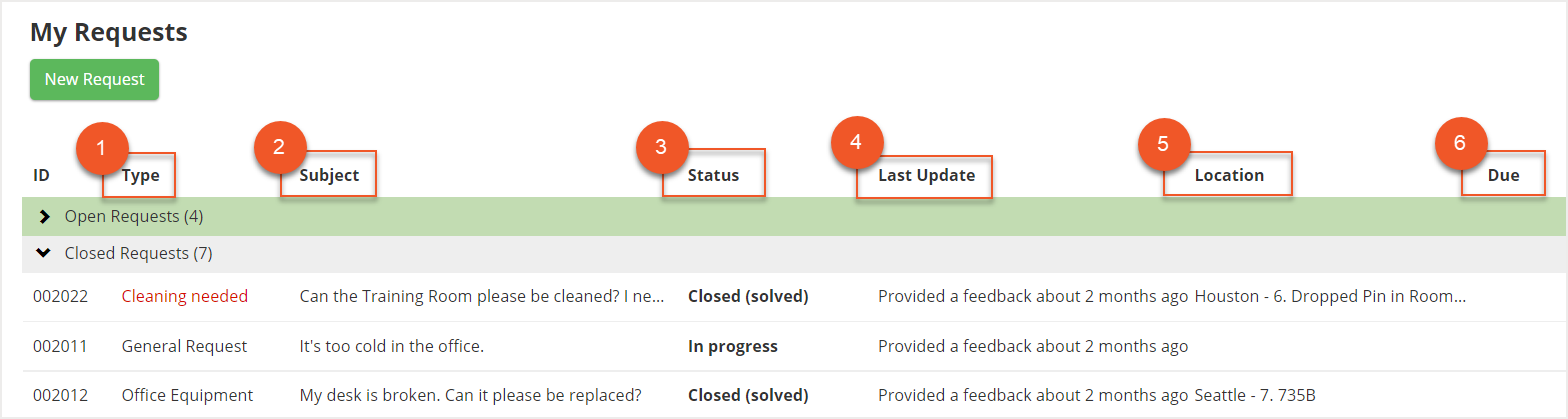
There are four different statuses under the My Requests tab. These statuses are:
- Open: Request that has been submitted, but has not yet been assigned to a Request Manager
- In Progress: Request that has been assigned to a Request Manager
- Closed (unsolved): Request was closed without resolution by the Request Manager or the requestor
- Closed (solved): Request was solved by the Request Manager
Reports
Under the Reports tab, you can find multiple reports and charts to help you track metrics and data about requests. Use the Request Types (1), Sites (2), and Period (3) dropdowns at the top to filter the data that you see and drill down on specific information.
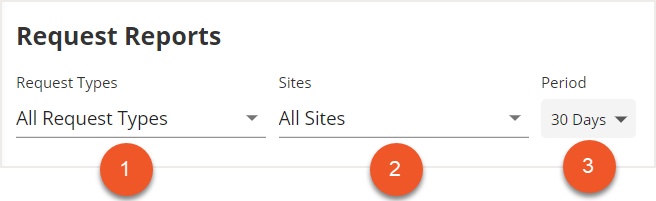
There are two types of reporting data that you can find under this tab: Request Statistics and Request Manager Performance. Use Request Statistics to track metrics related to the submitted requests, like the type of requests, the location of requests, the resolution time, and more. The Request Manager Performance metrics help you to view how your Request Managers are responding to requests, and they provide information into your management team’s resolution effectiveness. To learn more about these reports, check out the Request Reporting article.
New to OfficeSpace? Learn how our data-driven platform helps workplace leaders optimize space, connect hybrid teams, track assets, and manage visitors, all in one place.
Watch the demo or
take a tour.