Please note that your subscription plan determines the specific set of features available to you, which may result in differences between what you see and the images presented in this article. For further details on the features included in your plan, please contact your OfficeSpace Admin.
Desk Booking Restrictions allow your management team more control over how your bookable desks are utilized. You can use desk booking restrictions to manage everything from which employees book which desks to when each desk can be used. Custom desk booking restrictions can also be created, allowing your organization to create restrictions tailored towards your needs. Desk booking restrictions are managed in Move Manager.
You must be a Facility Manager, Facility Admin, or System Admin to manage desk booking restrictions.
Restricting Bookable Desks
Creating Custom Desk Booking Restrictions
Viewing Desk Booking Restrictions in Move Manager
Restricting Bookable Desks
OfficeSpace allows you to restrict who can book a desk by three different criteria:
- Occupants assigned to the bookable desk
- Users matching the desk department
- Customized restrictions determined by employee field
The Only assigned occupants (1) restriction allows you to designate one or multiple employees who will be able to book a desk. Any other person who isn’t assigned to that desk is effectively blocked from reserving it.
The Only people matching desk department (2) restriction only allows employees to book the desk if their assigned department matches the department assigned to the desk.
Using the Custom restriction by employee field (3) restriction, you can create a new restriction using employee field information or choose one that has been previously created in the system.
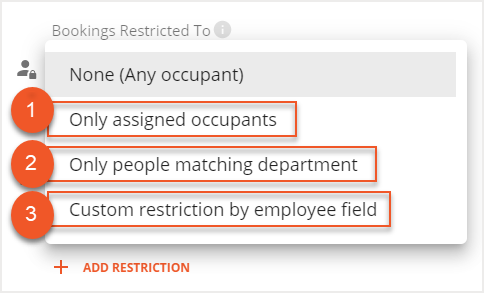
Desk booking restrictions can be added to individual desks or the same restrictions can be assigned to multiple desks at once.
Giving Groups Early Booking Access
Restricting Individual Bookable Desks
Restricting Multiple Bookable Desks
Giving Groups Early Booking Access
Early Booking Access lets you give specific employees or groups more time to book certain desks before those desks become available to others.
For example, you can allow one department to book a desk up to 14 days in advance, then add another restriction that allows a broader employee group to book the same desk up to three days in advance.
Early Booking Access is managed by adding a booking window to a desk booking restriction. A desk can have multiple restrictions, and each restriction can have its own booking window.
When an employee tries to book a desk, OfficeSpace checks whether the employee matches a restriction and whether the selected booking date is within that restriction’s booking window.
To make a desk available to a broader group closer to the booking date, add a separate restriction for that group and set its booking window. Early Booking Access does not create an automatic “everyone else” booking window.
A 0-day booking window allows same-day bookings only. If no booking window is set, the restriction does not add a time limit.
Please note that Early Booking Access cannot exceed the site’s Advance Booking Limit.
Users with elevated booking permissions may be able to bypass the site’s Advance Booking Limit. However, Early Booking Access is evaluated for the employee who will occupy the desk.
For a general overview of how Early Booking Access works, see Introduction to Early Booking Access.
Restricting Individual Bookable Desks
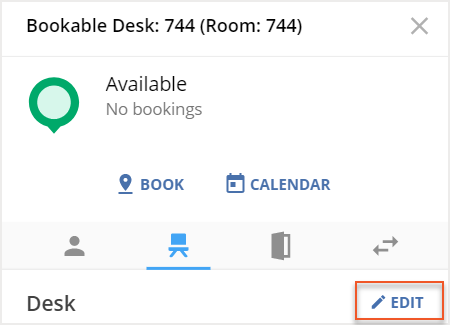
In Move Manager, you can set desk booking restrictions by locating and selecting the desired desk on the floor plan. Under the desk tab in the info card, select Edit.
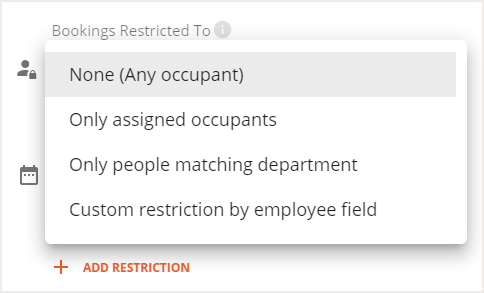
The Resource Editor then opens. Using the Bookings Restricted To field dropdown, select your preferred desk booking restriction.
To give the selected employees or group early booking access, select Set advance booking window.
Enter how many days in advance employees who match the restriction can book the desk.
Save your changes.
Desk booking restrictions can also be assigned in conjunction with a shift, allowing you to further manage the use of the desk. A shift must be created in advance to be able to assign it to a desk booking restriction. Check out the Creating and Managing Shifts article for more information.
Using the Availability field, you can select a shift to assign to the desk booking restriction.
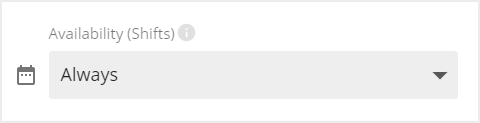
To create additional restrictions for the bookable desk, select Add Restriction.

You can add multiple restrictions to the same desk when different employees or groups should have different booking windows.
For example, one restriction can allow a department to book the desk up to 14 days in advance, while another restriction can allow a broader employee group to book the desk up to three days in advance.
To make a desk available to a broader group closer to the booking date, add a separate restriction for that group and set its booking window. Early Booking Access does not create an automatic “everyone else” booking window.
Please note that Early Booking Access only applies when the desk’s booking access is controlled by restrictions with booking windows. If a desk is left unrestricted, the booking window is not applied and employees can book the desk based on the site’s regular desk booking settings.
Then select Save to save your changes.
Restricting Multiple Bookable Desks
You can use the Multi-Select tool to assign the same restrictions to multiple bookable desks at the same time.
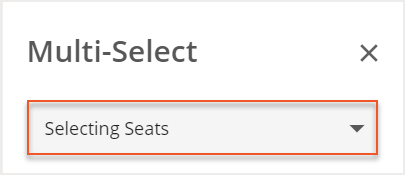
In the Multi-Select panel, use the dropdown to choose Selecting Seats.
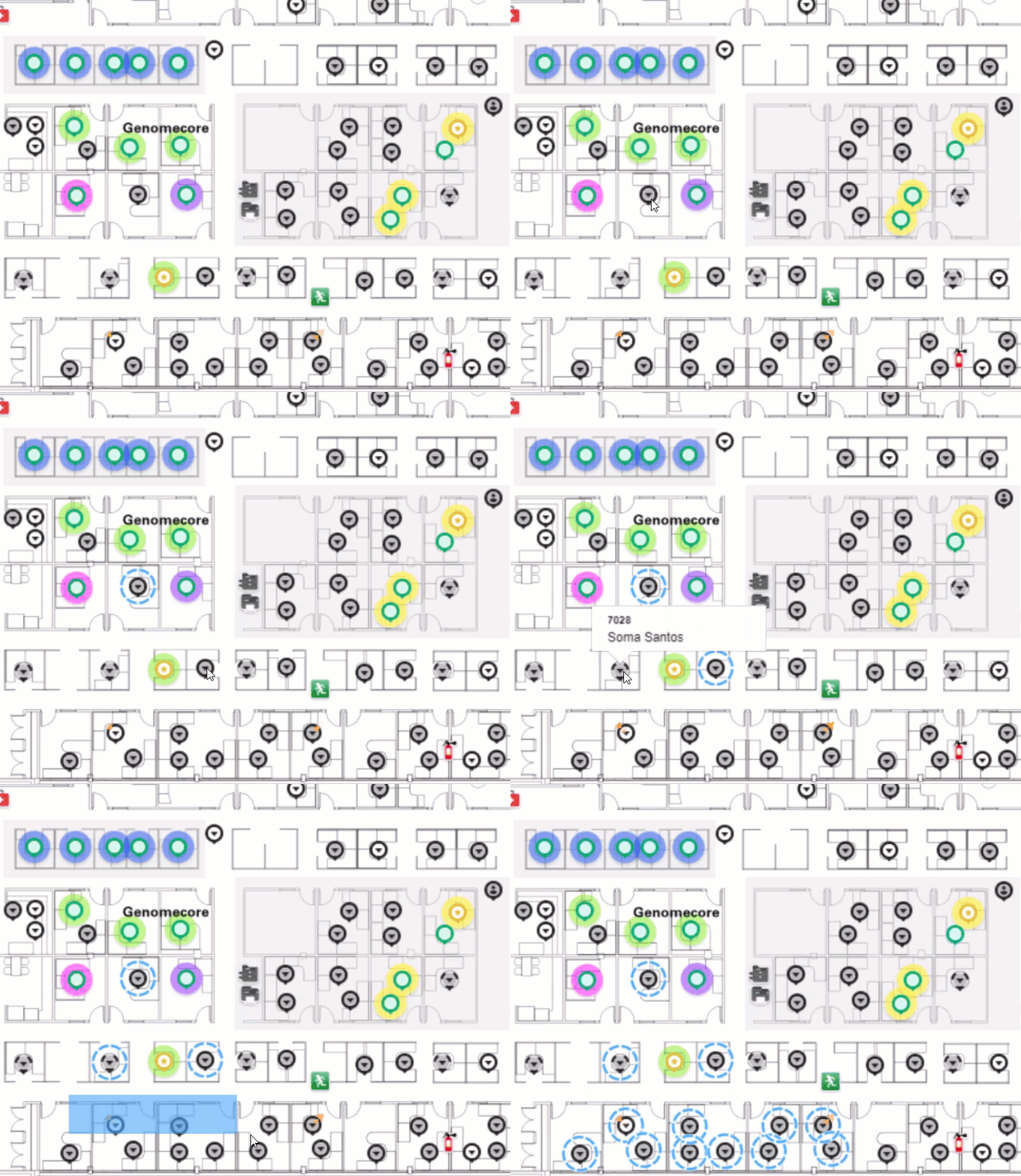
To begin making changes, hold down Shift on your keyboard and select all the desired desks on the floor plan. You can also select an area of the floor plan by holding down Shift on your keyboard, selecting a point, and then dragging your mouse across the floor plan. The selected desks will be highlighted.
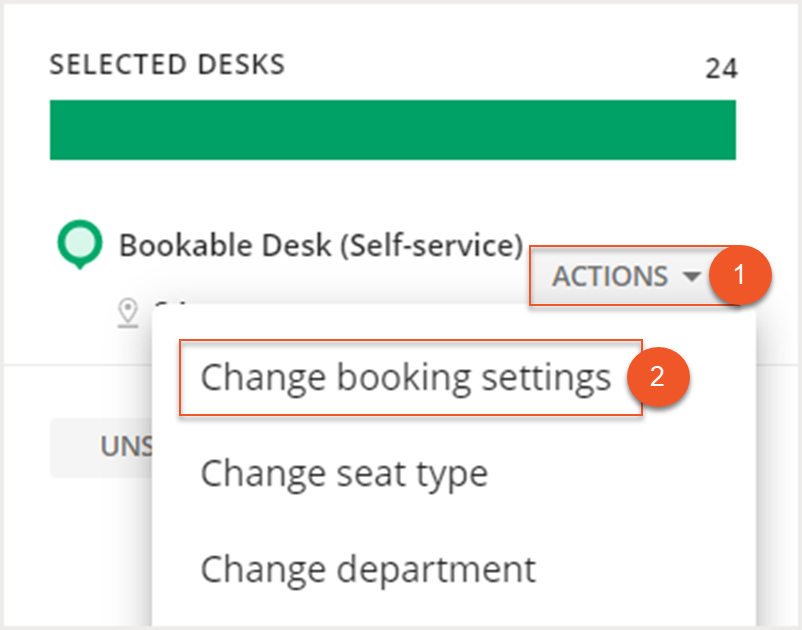
After you have selected your desks, you’ll see the number of desks for each selected desk type under the Selected Desks section. Expand the Actions dropdown (1) next to the Bookable Desk (Self-service) and choose Change booking settings (2) from the list.
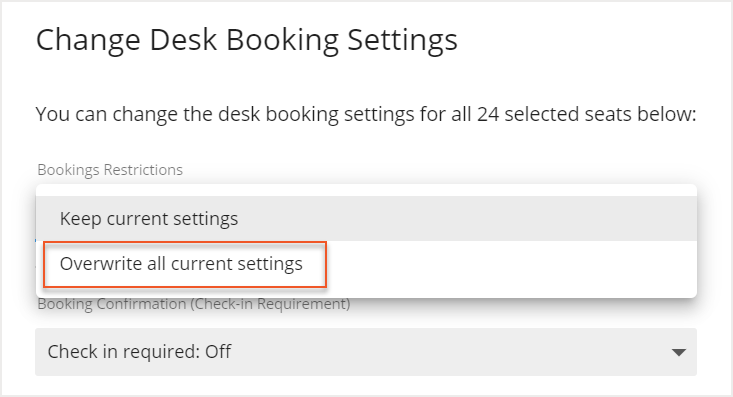
The Change Desk Booking Settings screen then opens. Using the Bookings Restrictions dropdown, select Overwrite all current settings. Note that when the new booking restrictions are assigned, any existing restrictions on the selected desks will be overwritten.
Using the Bookings Restricted To field dropdown, select your preferred desk booking restriction.

To apply Early Booking Access to the selected desks, select Set advance booking window.
Enter how many days in advance employees who match the restriction can book the selected desks.
Review the booking restriction summary before saving your changes.
Desk booking restrictions can also be assigned in conjunction with a shift, allowing you to further manage the use of the desk. A shift must be created in advance to be able to assign it to a desk booking restriction. Check out the Creating and Managing Shifts article for more information.
Using the Availability field, you can select a shift to assign to the desk booking restriction.

To create additional restrictions for the bookable desk, select Add Restriction.

If you would also like to change the check-in settings for the selected desks, you can use the Booking Confirmation (Check-in Requirement) dropdown to make adjustments.

When updating restrictions for multiple desks, make sure each group that should be able to book the selected desks has its own restriction and booking window. Early Booking Access does not create an automatic “everyone else” booking window.
Note that overwriting booking restrictions for multiple desks replaces existing booking restrictions on the selected desks.
Then select Save to save your changes.
Creating Custom Desk Booking Restrictions
Using Move Manager, you can also create customized desk booking restrictions. These restrictions are based on the employee fields, such as Department, Status, Title, or Supervisor. The corresponding data for these employee fields is pulled from the People Manager report.
Custom desk booking restrictions can be used with Early Booking Access when you need to give a specific group more time to book certain desks.
For example, you can create a custom restriction for employees who match a specific department and title, then add a booking window so that group can book selected desks earlier than other employees.
Note that Facility Managers are only able to edit and delete custom restrictions they have created.
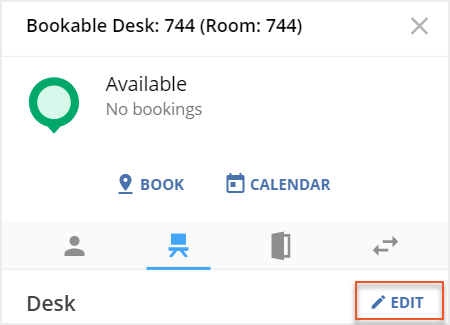
To assign a custom booking restriction to a bookable desk, locate and select the desired desk on the floor plan. Under the desk tab in the info card, select Edit.
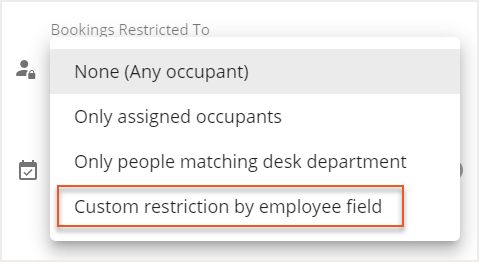
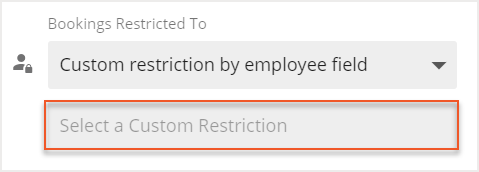
The Resource Editor then opens. Using the Bookings Restricted To field dropdown, select Custom restriction by employee field.
Then, select the Select a Custom Restriction field and choose Create/Manage Restrictions.
In the Manage Custom Restrictions screen, select Create New to create a new custom restriction.

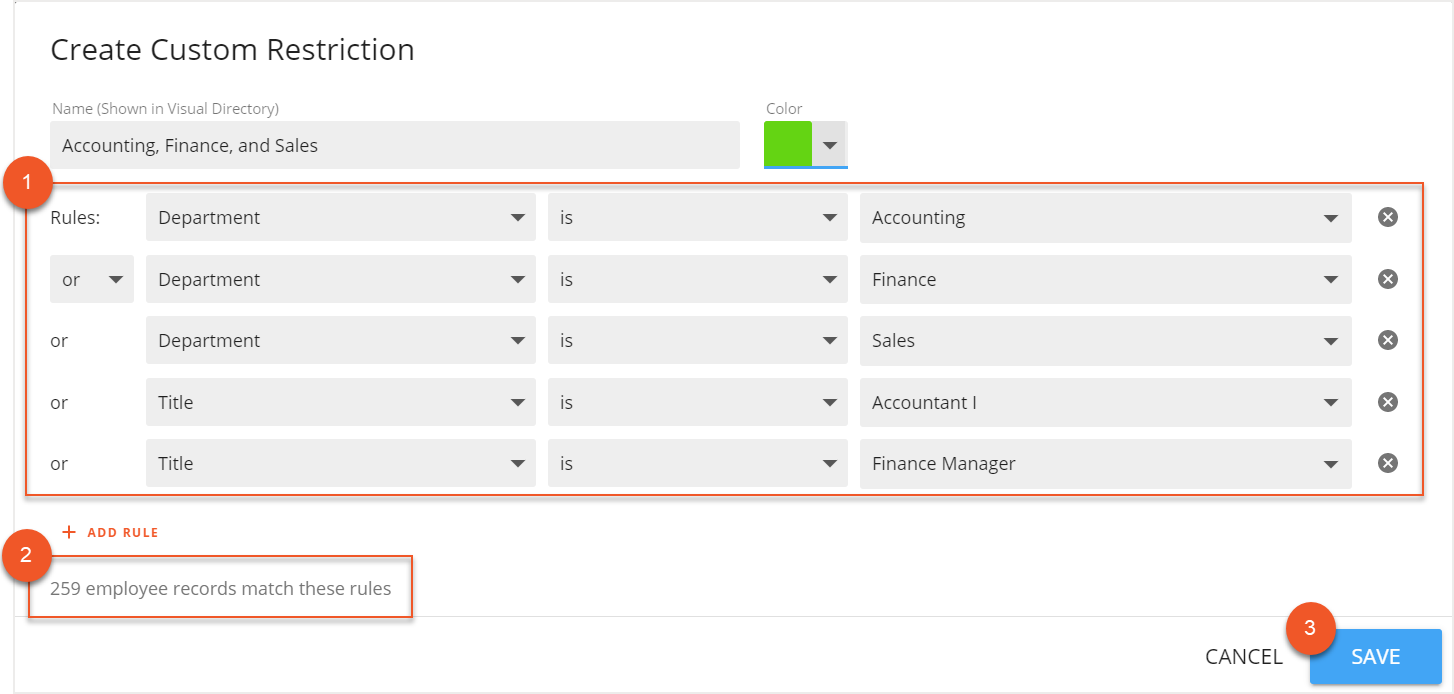
The Create Custom Restriction screen then opens. Use the fields (1) to create your own custom combinations of rules, adapting each restriction to your needs. At the bottom of the screen, the number of employee records (2) that match the rules you have created will be displayed. After you have created your rules, select Save (3) to save your custom restriction.
Custom desk booking restrictions can also be assigned in conjunction with a shift, allowing you to further manage the use of the desk. A shift must be created in advance to be able to assign it to a desk booking restriction.
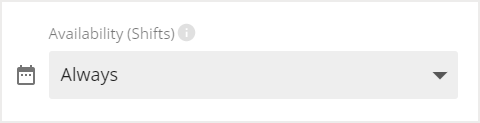
Using the Availability field, you can select a shift to assign to the custom desk booking restriction.
Then select Save to save your changes.
Viewing Desk Booking Restrictions in Move Manager
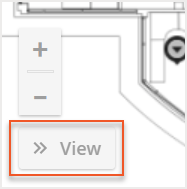
In Move Manager, you can use View Configuration to customize your view based on desk booking restrictions. To color the floor plan by booking restriction, select View in the bottom-left corner.
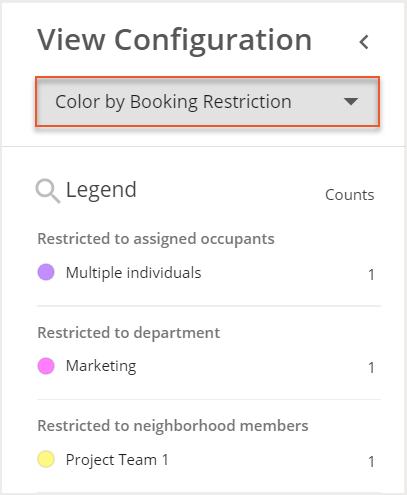
The View Configuration panel then expands. Use the dropdown menu to select Color by Booking Restriction. The floor plan will color according to the assigned booking restrictions. You can use the legend to determine which restriction is applied to each desk.
Some desks may have Early Booking Access rules that allow different employees or groups to book the same desk at different times. The floor plan can help you identify which booking restriction is applied to a desk, but the employee’s ability to book that desk depends on the restriction and the selected booking date.